Ravi GrowthGet Started
Claude
How to Use Claude for Long Documents, Contracts and Reports
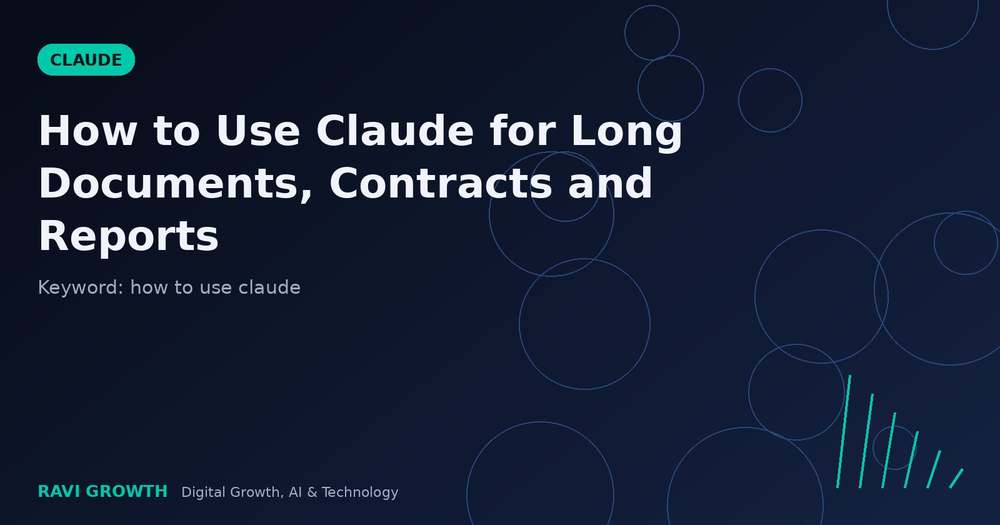
Reading a forty-page report or a vendor contract takes an hour you do not have. Claude, the AI assistant from Anthropic, is built to handle long text well. You can upload a document and ask for a summary, a list of risks, or answers to specific questions.
It saves time. It does not replace reading the parts that matter, and it does not replace a lawyer. This guide shows how to use it well and how to stay safe.
Plans, file limits and features change. Check Claude's current help pages for supported file types and size limits before you start.
Step 1: Decide what you can share
Before uploading anything, check:
- Does the document contain personal data about customers or staff?
- Is it covered by a confidentiality agreement?
- Does your client or employer allow AI tools?
If yes to any, remove sensitive sections, anonymise names, or ask for permission. Look at the privacy and data settings of your plan. If you are not sure, do not upload.
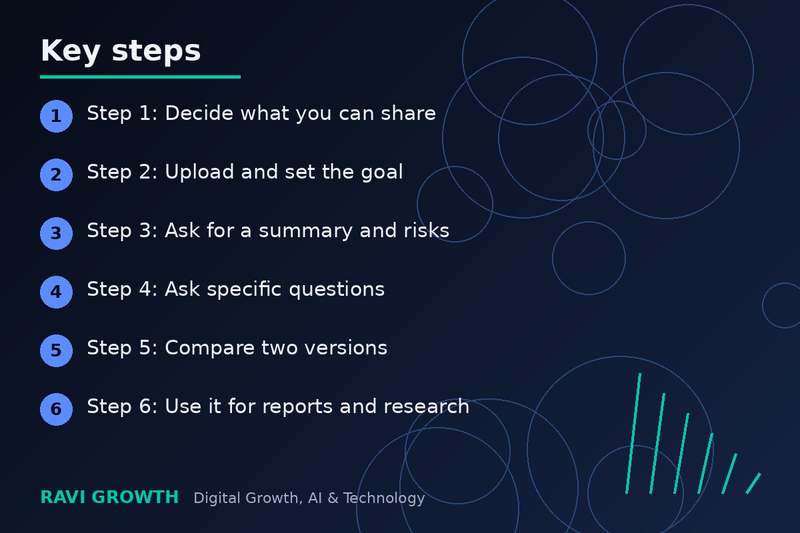
Step 2: Upload and set the goal
Upload the file or paste the text. Then say what you want it for. A goal produces a better answer than "summarise this".
Prompt: I am the owner of a small agency. The attached document is a services contract from a client. Read it fully. Summarise it in plain English in 10 bullet points. I need to decide whether to sign.
The sentence about who you are and what you need helps Claude choose what to highlight.
Step 3: Ask for a summary and risks
A good summary has two parts: what the document says, and what could hurt you.
Prompt: Give me: (1) a summary in under 200 words, (2) a table of key terms: parties, start and end dates, payment amounts and schedule, termination, renewal, (3) a list of clauses that could create risk for me, with the clause number and a one-line reason, (4) questions I should ask before signing. If something is not in the document, write "not stated".
The "not stated" rule is important. Without it, any AI may fill gaps with assumptions.
Step 4: Ask specific questions
After the overview, go deeper.
- "What happens if I cancel early? Quote the exact wording."
- "Who owns the work I produce?"
- "Is there a limit on liability? What is it?"
- "What are the payment deadlines and late fees?"
Asking for exact quotes lets you jump straight to the clause in the original and read it yourself.
Step 5: Compare two versions
When a client sends a revised contract or a new draft report, upload both.
Prompt: Compare Version 1 and Version 2. List every change in a table: section, what the old text said, what the new text says, and whether it favours me or the other party. Mention small wording changes too, such as "may" becoming "shall".
Small word changes often carry the biggest consequences. Check each flagged change in the actual documents.
Step 6: Use it for reports and research
For long reports, ask for structure.
Prompt: Summarise this report for a busy owner. Give the three main findings, the evidence for each, any numbers that stand out, and what the authors did not cover. Then list five questions I should ask the report's author.
You can also ask Claude to produce a one-page brief for your team, or a list of action items from a long report.
Step 7: Know the limits
- It can miss things. On very long documents, details can be overlooked or blended.
- It can misread. Legal language is tricky and context-dependent.
- It does not know your situation. It may not know local law, your past agreements or what you consider acceptable.
- It is not legal advice. For contracts with real money, IP, employment or liability at stake, a qualified professional should read the text.
Think of Claude as a fast first reader that prepares you for the real conversation.
Step 8: Verify against the source
For every important point, open the document and read the actual clause. A simple method:
- Ask Claude for the clause number or exact quote.
- Find it in the file.
- Read the sentence before and after.
- Confirm the meaning matches the summary.
If a quote does not appear in your document, treat the answer as unreliable and say so in your next prompt: "I can't find that quote. Check the document again."
Tips for better results
- Name the audience. "Explain to someone who is not a lawyer."
- Limit the scope. "Only focus on payment and termination."
- Ask for a table when you need to compare.
- Ask for the uncertain parts. "Which parts of your summary are you least sure about?"
- Work in sections for very long files. Paste or upload a chapter at a time.
- Keep a log of the prompt, date and file version you used.
A safe workflow for contracts
- Remove or mask personal and confidential details where possible.
- Upload and ask for the summary, key terms and risks.
- Ask for exact clause quotes on each risk.
- Read those clauses in the original.
- Write your questions and concerns.
- If the stakes are significant, send the document and your list to a lawyer.
- Ask the other party for changes in writing.
This method takes thirty minutes and makes any legal consultation faster and cheaper.
Quick summary
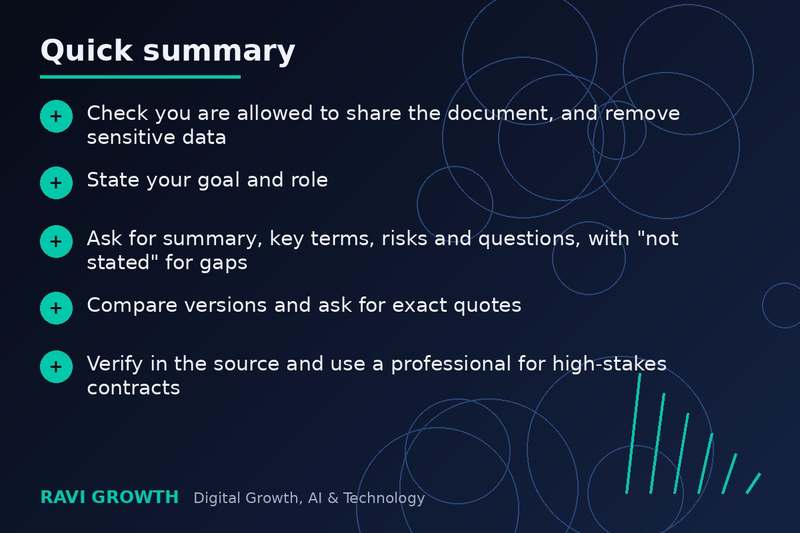
- Check you are allowed to share the document, and remove sensitive data.
- State your goal and role.
- Ask for summary, key terms, risks and questions, with "not stated" for gaps.
- Compare versions and ask for exact quotes.
- Verify in the source and use a professional for high-stakes contracts.
Frequently asked questions
Can Claude read a whole contract at once? It handles long inputs well, but limits depend on your plan and file. Check the current help page.
Is the summary accurate? Often, but it can miss or misread details. Always check the original.
Can Claude give legal advice? No. It can help you understand and prepare. A qualified lawyer gives advice.
Is my document stored or used for training? Policies change by plan. Read the current privacy terms for your account.
If you need help setting up safe AI document workflows for your team, Ravi Growth offers a free audit. Use the Contact page.