Ravi GrowthGet Started
Google Cloud and Google tools
How to Host a Simple Website on Google Cloud (Beginner Steps)
There is more than one way to host a website on Google Cloud. The right one depends on what kind of website you have. A plain set of HTML pages needs very little. A site with a database and logins needs more. Choosing the wrong one costs time and money.
This guide compares the simplest options and gives an overview of the steps. Google Cloud's screens, features and prices change. Use the official documentation for exact steps and check pricing on Google's pages before you commit.
First question: do you need Google Cloud at all?
For a simple brochure website, many people are better off with:
- A website builder with hosting included.
- A static hosting service with a free or low-cost plan.
- Ordinary shared hosting.
These need less technical skill and often cost less. Choose Google Cloud when you want its scale, its other services (storage, databases, AI), or you are building something custom with a developer.
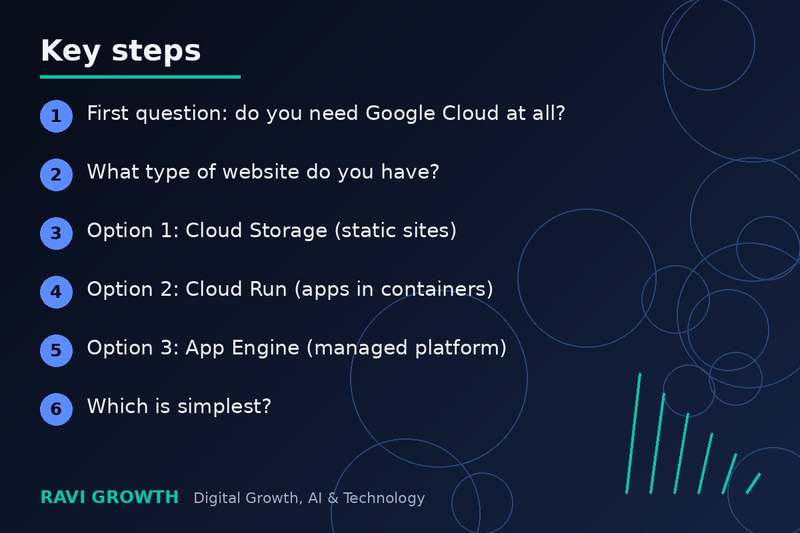
What type of website do you have?
Static site. Fixed files: HTML, CSS, JavaScript, images. Every visitor sees the same pages. Most small business sites can be built this way.
Dynamic site or app. Pages are generated by code and often a database: logins, bookings, shopping carts, dashboards.
This one question decides which option to use.
Option 1: Cloud Storage (static sites)
Cloud Storage holds files. It can serve a static website from a storage bucket.
Good for: brochure sites, landing pages, documentation.
Why it is simple: no server to manage. You upload files.
Things to know: - You will normally want your own domain name. Serving a custom domain with HTTPS usually needs extra setup, such as a load balancer or a content delivery service. Check the current documentation, because this affects cost and complexity. - Make only the website files public, nothing else. - Cost depends on storage, data transfer and any load balancer.
Option 2: Cloud Run (apps in containers)
Cloud Run runs your application packaged as a container. Google handles the servers and scales them up and down, including to zero when nobody visits.
Good for: dynamic websites, APIs, small web apps built with Node, Python or similar.
Why it is useful: you pay mostly for actual use, and it scales automatically. It also supports mapping a custom domain.
Things to know: - You need your app packaged as a container, or use source deployment features if available. A developer can do this. - Costs depend on requests, compute time and memory. Check the current pricing and free allowances. - Set a maximum number of instances to limit surprise costs.
Option 3: App Engine (managed platform)
App Engine is an older platform for hosting apps without managing servers. You deploy your code, and Google runs it.
Good for: apps built for it, and teams already familiar with it.
Things to know: - Cloud Run is often the first choice for new projects. Check Google's current guidance on which to use. - Costs depend on the settings you choose.
Which is simplest?
| Your site | Simplest option |
|---|---|
| Plain HTML pages | Cloud Storage, or a simpler host outside Google Cloud |
| Site with a small backend | Cloud Run |
| Existing app built for App Engine | App Engine |
| Not sure | Ask a developer, or start with a static host |
Always check the cost estimate in Google's pricing calculator for your expected traffic.
Overview of the steps (static site on Cloud Storage)
These are the general steps. Follow the current official guide for exact clicks.
- Set up your account and budget alerts first. See our guide on creating a Google Cloud account.
- Create a project for the website.
- Prepare your site files with an index.html as the main page and a 404 page.
- Create a storage bucket with a unique name and a region near your visitors.
- Upload the files.
- Make the files publicly readable, only for this bucket.
- Set the main page and error page in the bucket's website settings.
- Test the web address Google gives you.
- Connect your domain and HTTPS following the documentation. This is often the hardest part.
- Check the billing report after a day and a week.
Overview of the steps (app on Cloud Run)
- Set the account, budget and a project.
- Have your developer package the app, or use source deployment.
- Deploy to Cloud Run in a region near your customers.
- Set the maximum instances and memory.
- Allow public access if it is a public website.
- Test the service URL.
- Map your domain and confirm HTTPS.
- Watch logs and costs.
Cost check before you commit
Costs to look for:
- Compute (time and memory) or storage.
- Data leaving Google's network, called egress.
- Load balancers or CDN, if used for custom domains.
- Domain registration, which is separate.
- Backups and logs.
Use Google's pricing calculator with realistic traffic numbers. Add a margin. Then set your budget alert above your estimate by a sensible amount. Verify current prices on the official pricing page.
Security and reliability basics
- Use HTTPS only.
- Keep secrets and passwords out of your public files.
- Turn on two-step verification for every account with access.
- Give each person the least access needed.
- Keep a backup of your site files outside the hosting.
- Test the site on a phone and a slow connection.
Common mistakes
- Choosing Google Cloud for a tiny site when a simpler host would do.
- Making a whole bucket public that holds private files.
- Ignoring custom domain complexity.
- No budget alert.
- No backup.
- Forgetting to delete test sites.
Quick summary
- Decide whether the site is static or dynamic.
- Cloud Storage suits simple static sites, Cloud Run suits apps, App Engine is an older option.
- A simpler host may be cheaper and easier for a brochure site.
- Custom domains and HTTPS need extra setup.
- Check current prices and set a budget alert first.
- Back up your files and delete what you do not use.
Frequently asked questions
Is hosting on Google Cloud free? Some products have free allowances within limits. Check current terms. Do not assume a site is free.
Do I need a developer? For a static site, a patient beginner can manage with the guide. For apps, usually yes.
Which region should I choose? One close to most of your visitors, balanced against cost.
Can I move later? Yes, a static site is easy to move. Apps take more effort.
Ravi Growth builds fast websites and can advise on the simplest hosting for your needs. Ask for the free audit on the Contact page.