Ravi GrowthGet Started
Google Cloud and Google tools
How to Use Google Cloud Storage to Back Up Business Files
Every business has the same quiet risk. The accounts file is on one laptop. The customer list is on a phone. A drive fails, a laptop is stolen, or ransomware locks everything. Without a separate copy, the business loses weeks of work or worse.
Google Cloud Storage is a simple, low-cost place for backups. This guide sets one up in plain steps. Remember: a backup you never test is not a backup.
Screens, features and prices change. Follow Google's current documentation for exact steps, and check current pricing.
First: the 3-2-1 idea
A simple rule used by IT professionals:
- 3 copies of important data.
- 2 different types of storage.
- 1 copy offsite.
Cloud Storage can be your offsite copy. Keep one local copy as well, such as an external drive.
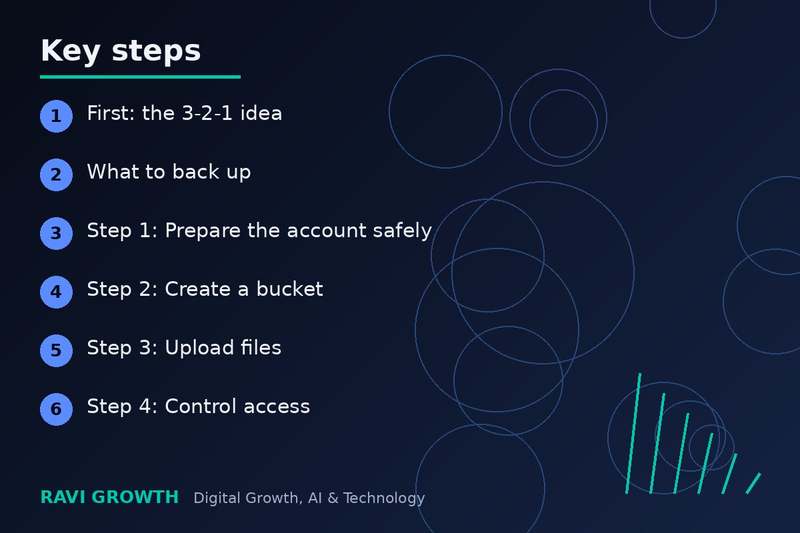
What to back up
List what you could not do without:
- Accounting and invoices.
- Customer and order records.
- Contracts and legal documents.
- Website files and databases.
- Design files and photos.
- Staff records (with extra care for privacy).
Do not back up everything blindly. It costs more and makes recovery confusing.
Step 1: Prepare the account safely
Before creating storage:
- Create your Google Cloud account and a project for backups.
- Set a budget with alerts. See our guide on setting a budget alert first.
- Turn on two-step verification for every person with access.
Step 2: Create a bucket
A bucket is a container for files in Cloud Storage.
- In the console, open Cloud Storage.
- Choose "Create bucket".
- Pick a unique name. Avoid putting private information in it, since bucket names can be seen.
- Choose a location. Pick a region you are comfortable with for legal and speed reasons. If you handle customer data, check whether any rules limit where it may be stored.
- Choose a storage class suited to backups. Colder classes cost less to store but charge more to retrieve and may have minimum storage durations. Check the current descriptions.
- Leave public access off. Backups should never be public.
- Turn on any option that prevents public access by mistake.
- Consider turning on object versioning, so an overwritten or deleted file can be recovered.
- Create the bucket.
Step 3: Upload files
For a first test:
- Use the console to upload a few folders.
- For regular backups, use a tool. Google provides command-line tools, and many backup programs can send data to cloud storage. Check which backup software you already use and whether it supports Google Cloud Storage.
- Name folders by date and system, for example "2026-11/accounting".
Do not upload sensitive data without encryption. Google encrypts data at rest by default, but if the files are highly sensitive, also encrypt them yourself before upload and keep the key safe, separately from the backup.
Step 4: Control access
Access control is where backups are won or lost.
- Give the fewest people access. Two trusted people is a good start.
- Use roles that allow upload, but not deletion, for the system or person doing daily backups.
- Keep deletion rights for an administrator.
- Never share passwords or keys. Use individual accounts.
- Never make the bucket public.
- Review access every month and remove anyone who has left.
Ask a developer to set least-privilege roles if you are unsure. Our guide on Google Cloud security basics covers this further.
Step 5: Use lifecycle rules to control cost
Backups grow. Without rules, you keep paying for old copies you do not need.
Lifecycle rules let you automatically:
- Move older backups to a cheaper storage class.
- Delete backups older than a chosen period.
- Keep a certain number of versions.
An example policy: keep daily backups for 30 days, monthly backups for 12 months, then delete. Check legal and tax rules for how long you must keep certain records. Accounting records often have mandatory retention periods, so ask your accountant before deleting anything.
Be careful with early deletion fees on colder storage classes. Read the current pricing notes.
Step 6: Test the restore
This is the step most people skip.
- Choose a folder at random.
- Download it from the bucket to a different computer.
- Open the files. Check they are complete and readable.
- Time how long it took.
- Write down the steps in a short document that someone else could follow.
Repeat every quarter. A backup you have never restored is a hope, not a plan.
Step 7: Automate and monitor
- Schedule backups to run daily or weekly, depending on how often your data changes.
- Set up an email alert if a backup fails, if your software supports it.
- Check weekly that the latest backup file exists and its date is recent.
- Check the billing report monthly.
What it costs
Cloud Storage charges for:
- Storage per gigabyte per month, depending on class and location.
- Operations such as uploads and downloads.
- Retrieval from colder classes.
- Data leaving Google's network, called egress, when you restore.
For small businesses with a few hundred gigabytes, the monthly cost is often modest, but check Google's pricing calculator with your own numbers. Do not rely on a figure from an article.
Mistakes to avoid
- Making the bucket public by accident.
- No restore test.
- One copy only. Keep a local copy too.
- Everyone has delete rights.
- No lifecycle rules, so costs creep up.
- Deleting records you must legally keep.
- Losing the account. Keep recovery details safe, and have a second admin.
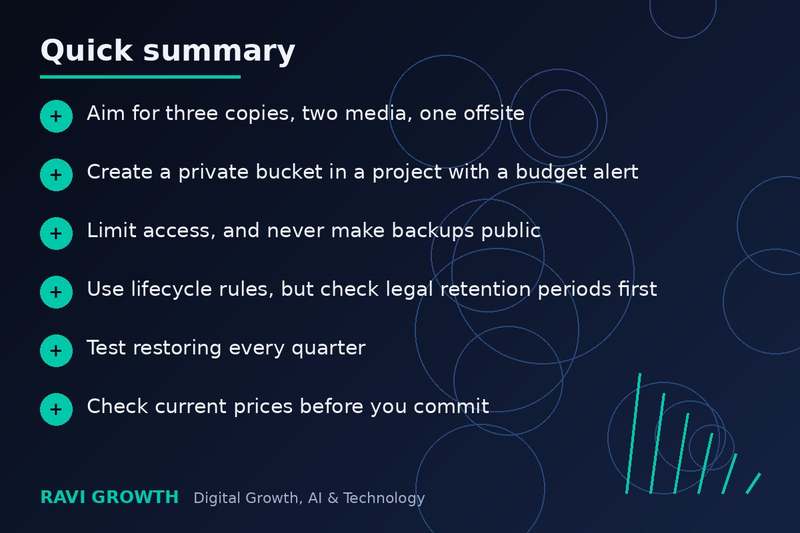
Quick summary
- Aim for three copies, two media, one offsite.
- Create a private bucket in a project with a budget alert.
- Limit access, and never make backups public.
- Use lifecycle rules, but check legal retention periods first.
- Test restoring every quarter.
- Check current prices before you commit.
Frequently asked questions
Is Google Cloud Storage safe for business files? It has strong security features, but safety depends on your settings and access control.
How often should I back up? As often as the data changes. For active business records, daily is common.
Can I restore a single file? Yes, if backed up as individual files or with versioning. Test it.
Do I need a developer? For basic uploads, no. For automation and strict permissions, it helps.
Ravi Growth can set up a safe, tested backup routine for your business. Ask for the free audit on the Contact page.