Ravi GrowthGet Started
Google Cloud and Google tools
How to Create a Google Cloud Account and Set a Budget Alert First
Stories of "I got a huge cloud bill" are common. They almost always begin the same way: someone creates an account, tries a service, forgets about it, and finds a charge weeks later. The protection takes ten minutes and should come before anything else.
This guide walks you through creating a Google Cloud account and setting a billing budget with alerts. Screens and wording change over time, so if what you see differs, follow Google's current documentation, which is linked from the Cloud console help.
Before you start
You need:
- A Google account. For a business, use an account you control long term, not a personal one that may be lost, and not one tied to a single employee.
- A payment method (card). Google Cloud requires billing details, even for trials.
- Two-step verification turned on for the Google account. If it is not on, do that first.
- About twenty minutes.
Know what you are agreeing to. Read the terms for any free trial, including its length, credit amount and what happens when it ends.
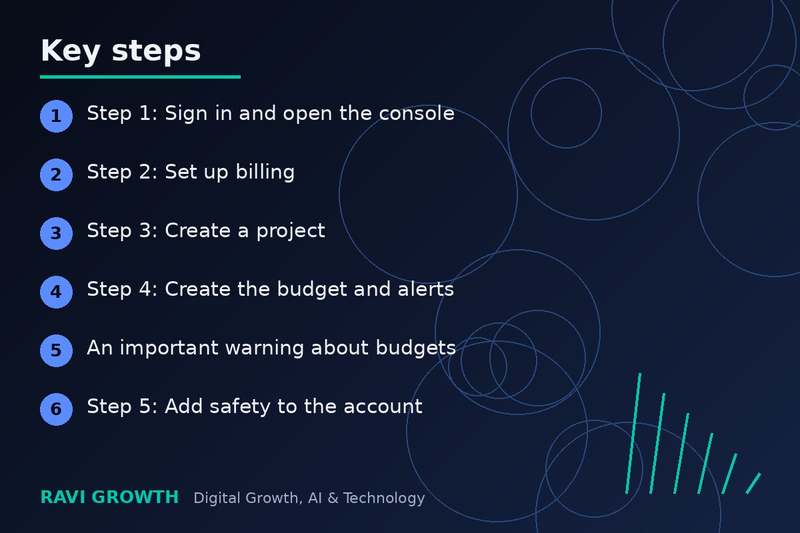
Step 1: Sign in and open the console
Go to Google Cloud's official site and sign in with your Google account. Check that the address is correct and belongs to Google before entering anything. Scam sites copy the look of cloud consoles.
The first time, you will be asked to agree to the terms and choose your country. Choose carefully, since this affects tax and billing.
Step 2: Set up billing
Billing in Google Cloud sits in a "billing account", which holds your payment method. You will be asked for:
- Account type (individual or business).
- Name and address.
- Payment method.
Use accurate business details. If you are in India, you may be asked for tax details such as GSTIN for business accounts. Ask your accountant if unsure.
If a free trial is offered, read what it covers and when charges begin.
Step 3: Create a project
In Google Cloud, everything lives inside a "project". Think of it as a folder that holds your services and tracks their costs.
- In the console, open the project selector at the top.
- Choose "New project".
- Give it a clear name, such as "mybusiness-website-test".
- Link it to your billing account.
Use separate projects for separate purposes (test and live). It keeps costs and access easy to see.
Step 4: Create the budget and alerts
Do this before creating any other service.
- Open the Billing section from the menu.
- Choose the correct billing account.
- Find "Budgets & alerts".
- Choose "Create budget".
- Name it, for example "Monthly budget".
- Choose the scope: your billing account or specific projects.
- Set the amount. Start low, an amount you would be comfortable losing, such as the cost of a small test.
- Set alert thresholds, for example 50 percent, 90 percent and 100 percent of the budget.
- Make sure email notifications are on, to the billing admins and to a second person if possible.
- Save.
You can also choose to alert on forecasted spend, which warns you if you are on track to exceed the budget before you actually do.
An important warning about budgets
A budget alert tells you about spending. By itself it does not always stop services or charges. Charges can continue after an alert, and billing data can lag behind real usage. This means:
- Read your alert emails the same day.
- Know how to switch off or delete the service that is costing money.
- For stronger protection, Google documents ways to automate responses to budget notifications, such as disabling billing on a project. This needs technical setup and care, because disabling billing can shut down services. Ask a developer, and check the current documentation.
Step 5: Add safety to the account
- Two-step verification on every account with access.
- Billing admin access for as few people as possible.
- A recovery email and phone for the Google account.
- Written notes of who owns the account and where the recovery details are kept.
Our companion guide on Google Cloud security basics goes deeper.
Step 6: Create one thing and watch the cost
Only after the budget is set, create a small service, such as a storage bucket or a test website. Then:
- Note the service name and the date you created it.
- After a day, open the billing reports to see what it costs.
- After a week, check again.
This teaches you how costs show up, before you have anything important running.
Step 7: Clean up
At the end of any test:
- Delete resources you no longer need.
- Delete test projects. Deleting a project stops billing for what it contained after a short waiting period, but check the current rules.
- Confirm in the billing report that charges have stopped.
Make "delete the test" part of every test.
A monthly habit
Once a month, spend ten minutes:
- Open the billing report.
- Look at the cost per service.
- Ask: do I recognise everything on this list?
- Delete or shut down what you do not use.
- Update the budget if your real usage has changed.
Why this protects you
Cloud charges are based on use. Mistakes in code, a public file that gets many downloads, or a machine left running can add cost quickly. A budget with early alerts gives you time to react. It is the single most valuable step for a beginner.
Mistakes to avoid
- Creating services before the budget. Budget first.
- Alerts sent to an unread inbox. Use a monitored address.
- Using a personal account for a business. Ownership problems follow.
- Leaving test resources running. Delete them.
- Assuming "free tier" means no cost. Check limits.
- Ignoring the bill. Review monthly.
Quick summary
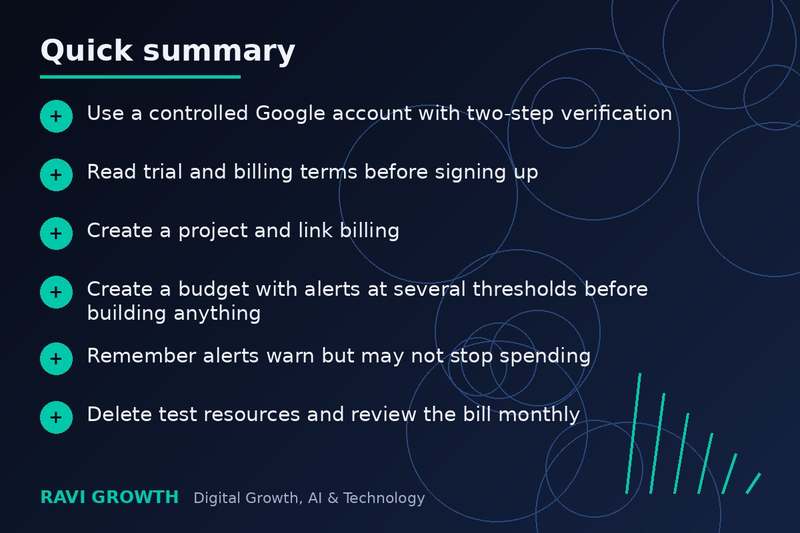
- Use a controlled Google account with two-step verification.
- Read trial and billing terms before signing up.
- Create a project and link billing.
- Create a budget with alerts at several thresholds before building anything.
- Remember alerts warn but may not stop spending.
- Delete test resources and review the bill monthly.
Frequently asked questions
Do I need a card for the free trial? Usually a payment method is requested. Check the current terms.
Can I set a hard spending limit? Not simply. A budget alert warns. Automated shutdown needs technical setup. Check Google's current documentation.
How low should my budget be? Low enough that an alert at 100 percent is a small annoyance, not a disaster.
What if I get an unexpected charge? Identify the service in the billing report, shut it down, and contact Google Cloud support to ask about the charge.
Ravi Growth can set up your cloud account, budget and security properly, or tell you if you do not need cloud at all. Ask for the free audit on the Contact page.