Ravi GrowthGet Started
Google Cloud and Google tools
Google Cloud Security Basics: Passwords, Roles and Two-Step Verification
When people imagine a cloud break-in, they picture an expert hacker defeating Google's defences. Reality is duller. Most incidents begin with a stolen password, a key pasted in a public place, or an ex-employee who still has access. Google secures its data centres. You secure who can get into your account and what they can do.
Four habits cover most of the risk. None needs technical skill. Google's screens and recommendations change, so check its current security documentation as well.
Habit 1: Turn on two-step verification
A password can be guessed, reused or stolen. Two-step verification (also called two-factor or multi-factor) adds a second proof, such as a code or a security key, so a stolen password alone is not enough.
What to do:
- Turn on two-step verification for every Google account that has access to your cloud project, starting with the owner and billing admin.
- Prefer stronger methods where available, such as a hardware security key or passkey, over codes sent by SMS. SMS can be intercepted or hijacked through SIM swapping.
- Store backup codes safely, offline, and not in the same place as your password.
- Set a recovery email and phone number, and keep them current.
- Check that the people with access have really turned it on. Do not assume.
Some organisations can require two-step verification for all users. If you use Google Workspace, ask your administrator to enforce it.
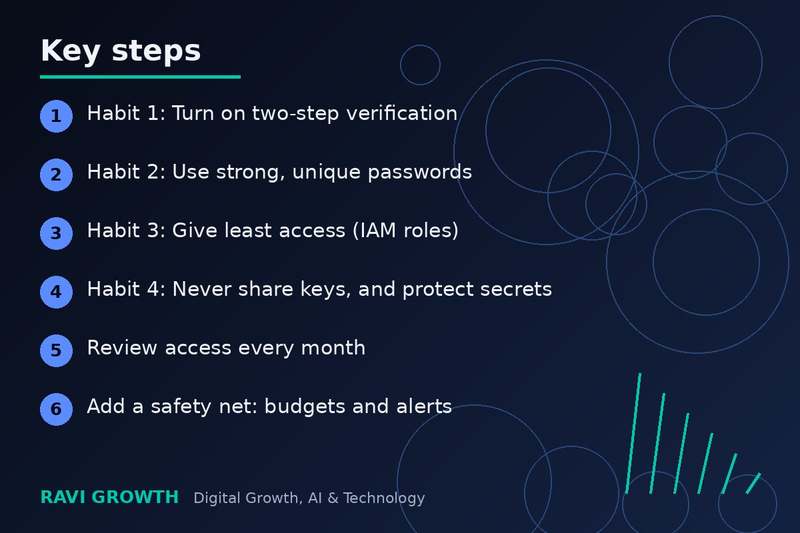
Habit 2: Use strong, unique passwords
- Use a password manager to create and store long, random passwords.
- Never reuse a password across accounts.
- Never share a password in email, chat or a document.
- Change a password at once if you suspect it leaked, and review recent account activity.
- Watch for phishing: fake sign-in pages and emails that urge you to act quickly. Check the web address before entering anything, and go to the site yourself rather than clicking a link.
Habit 3: Give least access (IAM roles)
Google Cloud uses IAM (Identity and Access Management) to control who can do what. The principle is least privilege: give each person or program only the access needed for their job and nothing more.
Why it matters: if an account is compromised, the damage is limited to what it could do.
What to do:
- Do not make everyone an Owner or Editor. Those broad roles can change and delete almost everything.
- Choose specific roles. For example, someone who only needs to read files should have a read-only role for that storage, not a project-wide role.
- Grant access at the smallest scope that works: one bucket or one project, not the whole organisation.
- Keep a small number of owners, at least two people, so the business is not locked out if one is unavailable.
- Use separate accounts for administration and daily work, where practical.
- Use groups to manage access for teams instead of adding individuals one by one.
- For programs and automated jobs, use service accounts with narrow roles, not a person's account.
If you are unsure which role to pick, ask a developer or consultant. Do not give wide access just to make an error go away.
Habit 4: Never share keys, and protect secrets
API keys, service account keys and passwords inside code are secrets. Attackers scan public code sites for leaked keys and use them within minutes.
What to do:
- Never put keys into website code, public repositories, screenshots, chat or email.
- Store secrets in a proper secret manager or environment settings, not in the source code.
- Prefer methods that avoid long-lived downloadable keys, where Google offers them. Check the current guidance.
- Use different keys for different purposes.
- Restrict each key where possible, for example to one service or to certain addresses.
- If a key leaks, revoke it immediately, create a new one and check billing and logs for misuse.
- Remove access when a person or contractor leaves.
Review access every month
Security fades if you do not look at it. Once a month, set aside fifteen minutes:
- List everyone with access to your cloud projects.
- Ask of each: do they still work here, and do they still need this access?
- Remove or reduce access that is no longer needed.
- Check that two-step verification is on for all.
- Check for unused keys and service accounts, and delete them.
- Look at recent activity logs for anything unfamiliar, such as sign-ins from unexpected places or new resources you did not create.
- Check the billing report for surprises.
Write the date and what you changed in a simple log.
Add a safety net: budgets and alerts
A budget alert is not a security tool in itself, but sudden unexpected cost is a common sign of misuse, such as someone using your account to run their own computers. Set budget alerts, and treat an unexpected spike as a possible security incident. See our guide on setting a budget alert first.
Backups and recovery
Security includes being able to recover.
- Keep backups of important data outside the account being protected. See our guide on backing up files to Cloud Storage.
- Keep a written, printed copy of who the owners are, and how to reach Google support and your domain provider.
- Decide in advance who does what if the account is compromised.
What to do if something looks wrong
- Change the password of the affected account and sign out other sessions.
- Check and remove unknown access and keys.
- Revoke any leaked key.
- Look at logs and billing for activity you do not recognise.
- Shut down resources you did not create.
- Contact Google Cloud support, and inform your customers if their data may be affected, as the law in your location may require.
- Write down what happened and fix the cause.
Act the same day. Delay increases cost and damage.
Mistakes to avoid
- Everyone is an Owner.
- Only one admin, so a lost account means a locked business.
- Keys pasted into code or chat.
- Two-step verification only on "important" accounts.
- Former staff still have access.
- SMS-only verification for the most powerful accounts.
- No monthly review.
A ten-minute starter checklist
- [ ] Two-step verification on for every account with cloud access.
- [ ] At least two owners, and no more than needed.
- [ ] Each person has a specific role, not Owner by default.
- [ ] No keys in code, chat or email.
- [ ] Budget alert set.
- [ ] Backup exists outside the account.
- [ ] Monthly review booked in the calendar.
Quick summary
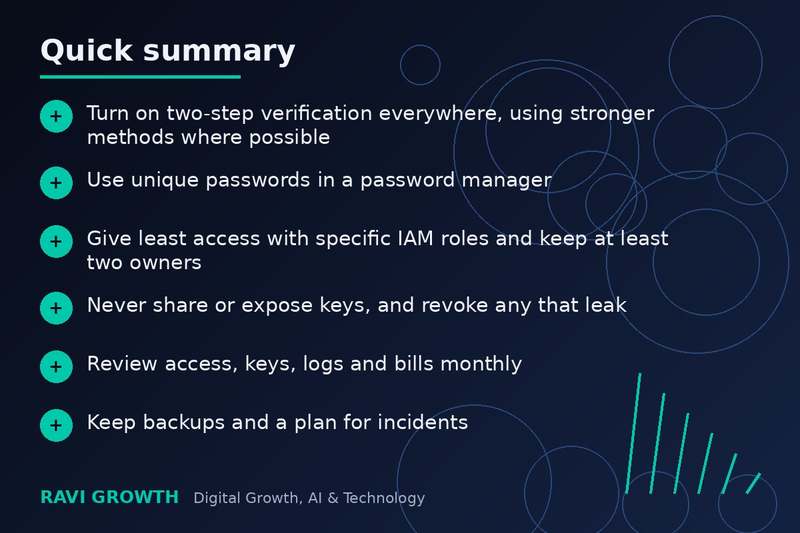
- Turn on two-step verification everywhere, using stronger methods where possible.
- Use unique passwords in a password manager.
- Give least access with specific IAM roles and keep at least two owners.
- Never share or expose keys, and revoke any that leak.
- Review access, keys, logs and bills monthly.
- Keep backups and a plan for incidents.
Frequently asked questions
Is Google Cloud secure by default? Google protects its infrastructure, but your settings, passwords and access choices are your responsibility.
Is SMS verification enough? It is better than nothing, but stronger methods are safer for powerful accounts.
What is the biggest risk for small businesses? Weak or shared passwords, missing two-step verification and leaked keys.
Who should be an Owner? As few trusted people as practical, and at least two so you are not locked out.
Ravi Growth can review your account access and set up safe habits for your team. Ask for the free audit on the Contact page.