Ravi GrowthGet Started
Google Cloud and Google tools
How to Use Google Analytics and Search Console with Your Website

You published a website. Is anyone visiting? Where do they come from? Which pages do they read? Does Google even show your site in search results? Two free Google tools answer these questions: Google Analytics and Google Search Console.
They do different jobs and work best together. This guide sets both up and shows how to read the first reports. Screens change, so if yours differ, follow Google's current help pages.
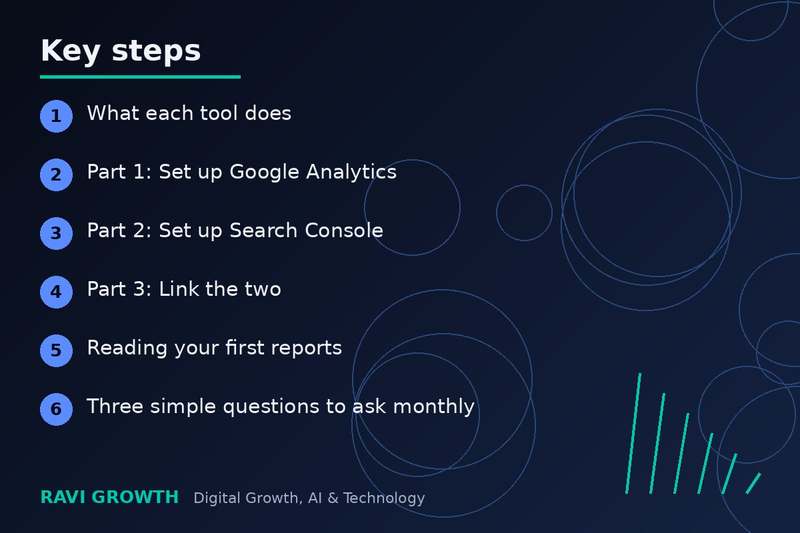
What each tool does
Google Analytics (GA4) shows what visitors do on your site: how many arrive, from where, which pages they view, and what actions they take.
Google Search Console shows how your site performs in Google Search: which searches show your pages, how often people click, and whether Google found any problems.
A simple way to remember it: Search Console describes what happens before the visit. Analytics describes what happens after.
Before you start
You need:
- A Google account you control long term.
- Access to your website's code or settings, or a developer who can add a snippet.
- Your final website address (domain).
Use one Google account for both tools, so they can be linked.
Part 1: Set up Google Analytics
Step 1: Create the account and property
- Go to the Google Analytics site and sign in.
- Create an account. Use your business name.
- Create a "property" for your website. Choose the correct time zone and currency. For India, that is India time and Indian rupees.
- Answer the business questions honestly. They only tailor the setup.
Step 2: Create a web data stream
- Choose the web platform.
- Enter your site address and a name.
- Google shows a Measurement ID that starts with "G-".
Step 3: Add the tracking tag to your site
The tag is a small piece of code that sends visit data to Analytics. Options:
- Website builders (Wix, Shopify, WordPress and others) usually have a place to paste the Measurement ID or an official plugin.
- Custom sites: your developer adds the Google tag, copied from the setup screen, into the head section of every page.
- Google Tag Manager is another route, useful if you will add more tags later.
Use the code Google gives you in the current setup screen. Do not copy snippets from random sites.
Step 4: Check it works
- Open your website in a browser.
- In Analytics, open the real-time report.
- You should see yourself as a visitor within a minute or two.
Full reports can take up to a day or two to fill, so be patient. If real-time shows nothing, check that the tag is on the page, and disable ad blockers for the test.
Step 5: Respect privacy
If you collect data from visitors, you should have a privacy policy that explains it, and you should follow the laws that apply to you and your visitors. Cookie consent rules differ by country. Ask a qualified person to check your policy and consent setup, especially if you serve visitors in Europe or other regulated regions.
Part 2: Set up Search Console
Step 1: Add your site
- Go to the Search Console site and sign in with the same Google account.
- Add a property. Two types exist: a domain property covers all versions of your domain, and a URL-prefix property covers a specific address.
- The domain property is the broader choice, but needs a DNS record at your domain provider. The URL-prefix property offers several simpler verification methods.
Step 2: Verify ownership
Google must confirm that you own the site. Common methods:
- DNS record at your domain provider.
- HTML file uploaded to your site.
- HTML meta tag added to your home page.
- Google Analytics or Tag Manager, if you have access to those on the site.
Pick one, follow the screen, and click verify. Keep the verification method in place, since removing it can unverify the site.
Step 3: Submit your sitemap
A sitemap lists the pages you want Google to find.
- Check that your site has one. Many builders create it automatically, usually at your-site/sitemap.xml.
- In Search Console, open "Sitemaps".
- Enter the sitemap address and submit.
- Check later that the status says success and the discovered page count looks right.
Submitting a sitemap helps Google find pages, but does not guarantee that they will be indexed or ranked.
Part 3: Link the two
In Analytics settings, look for the Search Console linking option and follow the steps. It lets you see search queries inside Analytics reports. You need access to both properties.
Reading your first reports
Give the tools at least a week or two before drawing conclusions.
In Analytics
Look at these first:
- Users and sessions. How many people visit.
- Acquisition. Where visitors come from: search, direct, social, referrals.
- Pages and screens. Which pages are read most.
- Engagement. How long people stay and how many pages they see.
- Events or conversions. Actions you care about, such as form submissions. You must set these up.
In Search Console
- Performance. Queries, pages, clicks, impressions, click-through rate and average position.
- Pages (indexing). Which pages are indexed and which are not, with reasons.
- Experience and usability reports. Mobile usability and loading signals, where available.
- Security and manual actions. Any warnings from Google.
Three simple questions to ask monthly
- Which pages bring visitors, and which do not? Improve the weak important pages.
- Which searches show my site but get few clicks? Rewrite those titles and descriptions to be clearer.
- What do visitors do before they enquire? Make that path easier.
Set up one conversion
A conversion is an action that matters, such as a submitted enquiry form. Mark that action as a key event in Analytics, following the current instructions. Then you can see which sources bring real enquiries, not just visits.
Mistakes to avoid
- Different Google accounts for each tool, which makes linking hard.
- Tag on only some pages.
- Counting your own visits. Consider filtering internal traffic.
- Judging after two days. Wait.
- Ignoring errors in the indexing report.
- Deleting verification methods.
- No privacy policy.
Quick summary
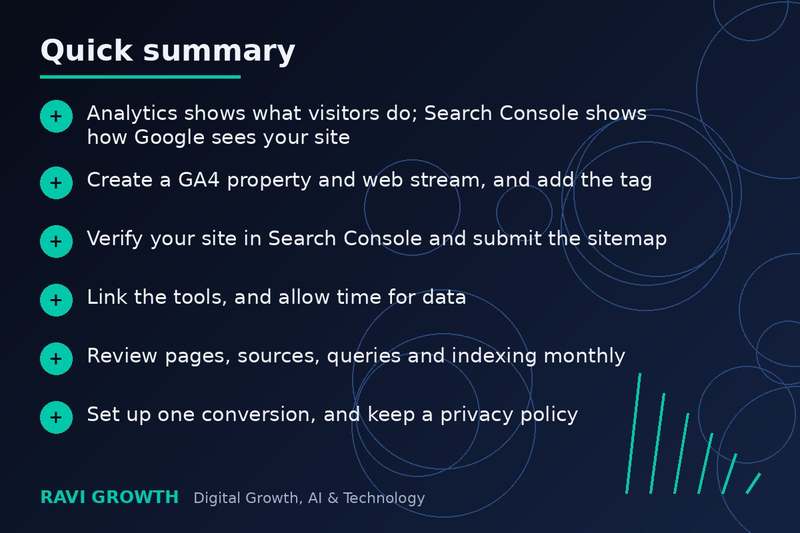
- Analytics shows what visitors do; Search Console shows how Google sees your site.
- Create a GA4 property and web stream, and add the tag.
- Verify your site in Search Console and submit the sitemap.
- Link the tools, and allow time for data.
- Review pages, sources, queries and indexing monthly.
- Set up one conversion, and keep a privacy policy.
Frequently asked questions
Are they free? Both have free versions. Check current terms.
Do I need both? Yes, for a complete picture.
Why is my data empty? It takes time, or the tag is missing. Use the real-time report to test.
Will this improve my ranking? Not by itself. They show what to fix.
Ravi Growth sets up analytics, search tools and clear monthly reporting. Ask for the free audit on the Contact page.